 Skip to content
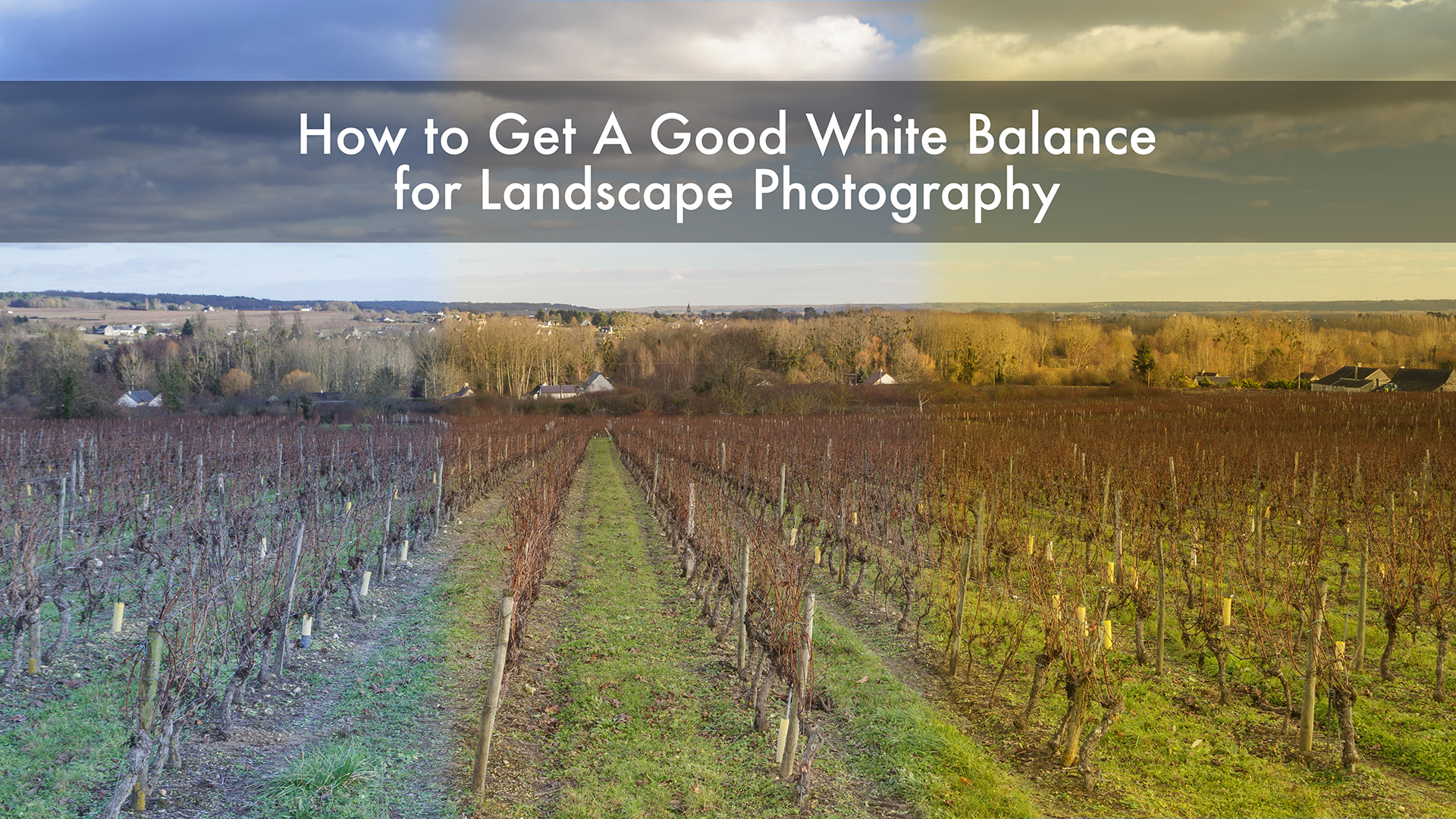

How to get a good white balance for landscape photography is my latest YouTube vlog detailing some of my exploits as I travel to various parts of the world.
As soon as we click the shutter on our cameras, white balance will always be applied. Digital cameras give us the edge over film cameras as we can immediately see the effect it is having on our images.
In the days of film, landscape photographers gravitated towards the rich colours of Fuji Velvia, but unless they used warm-up or cooling-down filters then they were stuck with a daylight balance of around 5500 K.
The raw images from our digital cameras allow us to correct any colour cast that may have appeared through the use of software such as Lightroom or Adobe’s Camera Raw. The temperature and tint sliders used in conjunction with the histogram and Tone Curve can help us to quickly remove any cast. This is especially useful if you’ve left your camera on Daylight balance and shoot indoors, where the image will take on an obvious colour cast.
My latest tutorial will help guide you through some of the principles of getting a good white balance in your images. Right from the field to the post-production side of things.
As with any tutorial on Adobe Lightroom, it must always be noted that this is of several ways in which you can do things. That is no way is the right way, and that creativity can also come into it. It may be that you colour correct an image only to find that the image looks too cold, so you might then wish to “warm up” the image in question.
But that is the beauty of our creativity and mind’s eye.
White balance sets the mood of a photograph. It decides whether the light feels cool, warm, clean, or tainted by an unwanted colour cast. That matters in every genre I shoot, from landscapes to travel, and even portraits.
When I look at a frame, I want the colour to support the feeling of the scene. A frosty morning can stay cool, but it still needs to feel believable. A warm evening needs to look inviting, not orange for the sake of it. If that balance is wrong, the viewer often moves on without knowing why.
If the white balance is out, I’ve already lost the image.
For me, this is the first edit that matters because it affects everything that comes after it. Exposure adjustments, local dodging and burning, and colour work all sit on top of white balance. If the foundation is off, the whole image can drift.
I often come back to one simple idea: “It looks so nice, and it speaks to me.” That response usually starts with colour. When the whites are neutral where they should be, and when the warmth or coolness matches the memory of the place, the image starts to breathe.
A good white balance does a few simple but important things:
That is why I pay attention to it in the field, then check it carefully again in Adobe Lightroom.
Out in the field, I don’t rely on a single method. Light changes too fast for that, especially when the sun is moving in and out of clouds. In the vineyard scene I used in central France, the shifting light kept changing the colour of the whole frame, so it was the perfect example of why I like to work in stages.
This is also the same way I approach teaching on my photography tours and workshops, because simple habits in the field make processing far easier later on.
If someone is new to photography, auto white balance is the best starting point. I set the camera to auto and let it read the scene in front of me. That gives me a usable reference and, in many situations, it gets surprisingly close.
The benefit is speed. I can react to changing light without stopping to fiddle with settings. In mixed conditions, that matters. A passing cloud can change the look of a scene in seconds.
The downside is consistency. Auto white balance can shift between frames, especially when the light keeps changing. One image may look slightly warmer, the next slightly cooler, even though the scene itself hasn’t changed much. That can be frustrating when I later compare files side by side.
Still, as a first step, it works well. It gives me a baseline, and it often gets me close enough to make sensible decisions in post.
The next step is to set white balance manually using Kelvin. On my Canon bodies, I can move through the preset white balance options, then switch into Kelvin and dial in a temperature that looks right for the scene.
This is more hands-on, and I like it because it forces me to look harder. Instead of accepting the camera’s guess, I ask myself how the light really feels. In the vineyard example, I judged the scene by eye and set it to around 5100K because that looked closest to what I was seeing.
That is not a scientific number pulled from nowhere. It is a visual decision. I look at the grass, the vines, the sky, and the overall feel on the back of the camera. Then I make the best call I can in that moment.
It doesn’t always nail the result. In the file I showed later, my manual Kelvin setting still gave me a noticeable blue cast. But it is still useful because it trains my eye, and sometimes it gives me a better starting point than auto.
The third method is to photograph a grey card in the same light as the scene. I take one frame without the card, then one with it visible. Later in Lightroom, I can sample that neutral grey to remove a colour cast from the scene.
It is not perfect. A grey card only gives me a neutral point based on that card, not a reading of every colour in the image. Light bouncing off nearby surfaces, mixed light, and mood all still matter. Even so, it gives me something solid to work from later.
In changing weather, that extra frame can save time. If I know the card was in the same light as the landscape, I can use it to set a clean starting white balance and then apply that setting to the main image.
This is a quick comparison of the three methods:
| Method | Ease of use | What it gives me | Main drawback |
|---|---|---|---|
| Auto white balance | High | Fast starting point | Can shift from frame to frame |
| Custom Kelvin | Medium | More control by eye | Easy to misjudge in changing light |
| Grey card | Lower | Neutral reference for post | Doesn’t solve every colour issue |
None of these methods is the whole answer. They are field tools, and the final decision nearly always happens later in Adobe Lightroom.
Back at the computer, I want to move beyond guesswork. That is where Adobe Lightroom helps because I can look at the histogram and the RGB values, not only at the overall feel of the image. I still trust my eyes, but I also want solid reference points.
I also want to say this plainly: presets don’t solve this. They can be a starting point, but every image needs its own treatment. Different light, different subject matter, and different colour casts mean one preset will not behave the same way across a whole set of files.
The first thing I do is look at the histogram. If one colour channel is pushing further than the others, there is a fair chance I have a colour cast somewhere in the image. In the auto white balance vineyard shot, the cast was small. The camera had done a decent job. In the manually set Kelvin frame, the blue shift was much clearer in the mid-tones.
That doesn’t mean I correct the whole image by eye alone. I move the cursor over different parts of the photograph and watch the RGB readouts. If I hover over a neutral area and blue is reading higher than red and green, I know where the cast sits.
A quick visual judgement can mislead me. Numbers keep me honest.
For lighter corrections, I go straight to the Basic panel. The temperature slider is often enough to remove a mild blue cast and bring warmth back into the file. If I only need a small adjustment, this is the fastest route.
That first vineyard image is a good example. A tiny move towards warmth improved the frame because the blue cast at the edge of the histogram was only slight. It didn’t need heavy work.
I also compare before and after views as I go. In Adobe Lightroom, pressing “Y” shows a before-and-after comparison, and “Shift + Y” cycles through the different layouts. That is handy when I want to check whether I have improved the image or simply pushed it in a different direction.
If I have shot a grey card, the white balance picker becomes far more useful. I click the eyedropper, sample the neutral grey, and Adobe Lightroom equalises the RGB values at that point.
In my example, the grey card area showed RGB values that were not equal, with blue reading higher than the other channels. After clicking with the white balance tool, those values matched, and the colour cast disappeared from the reference point.
From there, I can copy only the white balance setting and paste it onto the main image. That gives me a neutral starting point very quickly.
A few habits help here:
Sometimes the Basic panel isn’t enough. An image can look neutral in the highlights but still hold a blue cast in the shadows. When that happens, I work more carefully.
I first look for a bright area with detail still intact, often around 95 to 96 per cent rather than a clipped highlight. Cloud edges, pale stone, or bright walls can work well. Then I compare the RGB values there and nudge the temperature until those values come closer together.
After that, I check the dark parts of the image. I often pull the blacks slider down to see where the deepest detail sits, then hover over those shadow areas and read the RGB numbers. In the vineyard file, the dark vines still showed more blue than red or green.
That is where the tone curve comes in. I switch to the RGB curve, choose the blue channel, sample the shadow area, and pull the blue down until the channels come closer together. If needed, I also tweak the red channel to balance things out.
This is where white balance becomes part science and part judgement.
A neutral file is a starting point, not always the finish line.
One of the French vineyard images is a good example. Once I neutralised the colour cast, the frame looked colder. Technically, it was cleaner, but the day itself had felt cold, so the look still made sense. After that, I could warm it slightly if I wanted a more inviting feel. That final choice belongs to the photograph, not to a preset.
To show how this works in practice, I used a photograph of Saben Abbey above Chiusa in the Dolomites, made at around 9 o’clock in the morning. The location is striking, and the light was good, but the file carried a blue cast that dulled the trees and the autumn colour.
At first glance, the histogram did not make the problem obvious. That happens more often than people think. A file can feel wrong before the histogram clearly tells me why, so I still move around the image and inspect the RGB values.
The vines, rocks, and sunlit trees all showed a blue bias in their RGB readouts. I looked for a decent highlight that still held detail, not a blown area. Some of the brightest spots were reading too close to pure white, so they were no help.
Once I found a workable area in the rocks, I used the white balance controls to bring the RGB values closer together. On screen, the image looked a little cooler after this step, which can feel odd if I am expecting the frame to warm up straight away. Still, it gave me a more honest starting point.
The real colour issue sat in the darker tree line. When I checked the shadow values there, blue was clearly dominating. So I moved to the tone curve, selected the blue channel, and pulled it down in that dark tonal range. After that, I made a small tweak in the red channel to bring things closer again.
That change made the image come alive. The blue cast dropped away, the trees regained their autumn colour, and the photograph felt much closer to the morning I remembered.
This is why I don’t trust one-click solutions. Two images taken in different places, under different light, need different treatment. Even within the same image, the highlights and shadows may need separate decisions.
White balance is one of the first things I judge and one of the last things I refine. I want the file to be clean, but I also want it to feel true to the light I stood in. That is why I use both the numbers and my eyes.
If I had to keep one idea in mind, it would be this: neutral is a starting point, not a rule. Once I remove the unwanted colour cast, I can choose whether the image should stay cool, warm up slightly, or sit somewhere in between.
That approach works just as well for travel and portrait photography as it does for a mountain scene or a vineyard in France. When the colour feels right, the photograph has a far better chance of holding attention.