 Skip to content
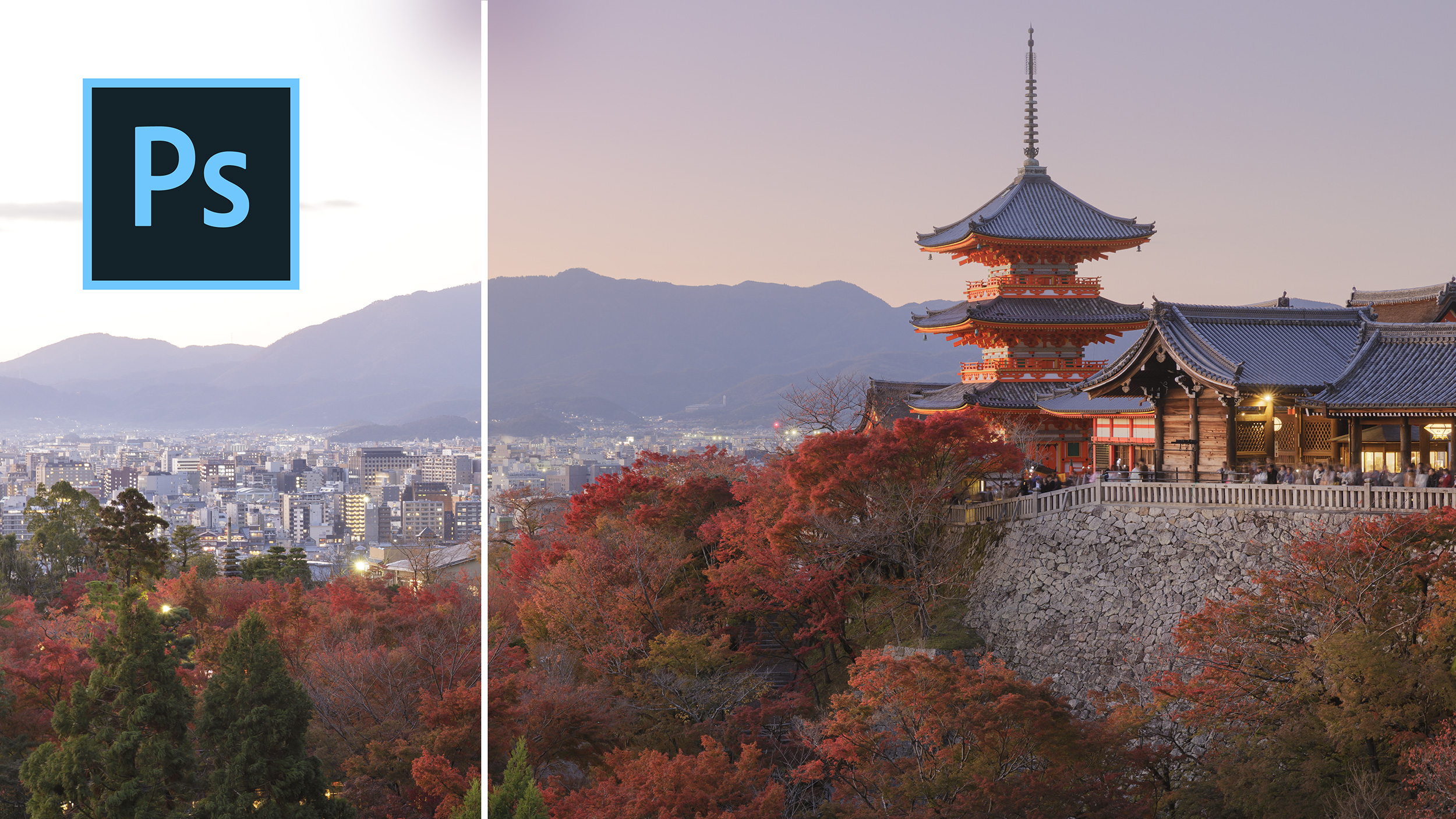

Learning how to blend exposures easily in Adobe Photoshop needn’t be a challenge. From simple exposure blending using the gradient tool to more advanced exposure blending techniques, Adobe Photoshop provides us with a variety of ways and means to blend two images together.
As landscape and travel photographers, we use Adobe Photoshop to help polish off our images. Although Adobe Lightroom can get you a long way to the end of the process, it’s with Adobe Photoshop that we can truly take things to a different level.
This week’s vlog isn’t just a case of following along, but I also explain some of the workings of the techniques so you understand how to blend exposures in full.
You don’t need the same technique for every photo. A flat horizon over open land is easy to blend. A mountain ridge, a pagoda roof, or a broken skyline needs more care. That’s why it helps to know more than one method, not because you must use them all, but because you can choose the one that fits the file in front of you.
The examples here move from simple to more complex scenes. You start with a straightforward image from Mongolia, where the horizon is almost flat, and the blend is easy. Then we’ll move into scenes from Glenfinnan and Kyoto, where bright skies meet uneven edges and a hard-edged grad would cut straight through the subject.
This quick comparison shows where each method fits best:
| Method | Best for | Speed | Control |
|---|---|---|---|
| Gradient Tool | Flat or near-flat horizons | Fast | Low |
| Color Range | Large areas of similar tone or colour | Fast | Medium |
| Blend If | Quick tonal blends | Fast | Medium |
| Calculations | Complex masks from channels | Medium | High |
| Apply Image | Fast automated blends | Medium | High |
| Luminosity Masks | Precise tonal targeting | Slowest | Highest |
The main takeaway when learning how to blend exposures is simple. Start with the easiest method that matches the scene, then move to a more precise one only when the image needs it.
Put the darker exposure on the top layer first. In most of these blends, that keeps the mask logic easy to follow.
A flat skyline is the easiest case in Adobe Photoshop. The first example uses a photograph from Mongolia, taken in September 2018, with tents in the foreground and a clean, open horizon. Because the break between sky and land is so even, you don’t need anything clever. A plain gradient mask does the job.
This is the sort of scene where speed matters more than precision. If the horizon doesn’t rise into mountains or buildings, you can blend two exposures in seconds and move on.
Place your darker exposure on the top layer, with the lighter foreground exposure underneath. Add a layer mask to the top layer, then select the Gradient Tool with the G key. Before you drag anything, reset your foreground and background colours with D. That gives you white as the foreground colour and black as the background colour. If you need to swap them, press X.
Now drag the gradient on the mask from the top of the frame down towards the land. Hold Shift as you drag so the line stays perfectly straight. Because white reveals the top layer and black hides it, the dark sky remains visible at the top, whilst the brighter foreground comes through lower down.
The distance of that drag matters. If you drag from the very top to the very bottom, the transition will be broad and soft. If you start closer to the horizon and drag a shorter distance, the blend becomes firmer. That’s often better when you want the sky to come in more strongly without looking washed out.
You can inspect the mask at any point by holding Alt or Option and clicking on the mask thumbnail. That shows you the gradient itself, not the image. It’s one of the quickest ways to spot whether the transition is too soft or too hard.
For a simple horizon, this method is hard to beat. It is fast, clean, and easy to adjust.
The Color Range tool is useful when learning how to blend exposures. Use it when the area you want to target shares a similar tone or colour. One good example is a dark sky exposure over a much brighter foreground frame, where the overexposed sky underneath is close to white. Even if the sky is not one perfect solid colour, it may still be uniform enough for Color Range to isolate it.
This works well because you are not drawing the mask by hand. Instead, Photoshop builds a selection based on sampled tones.
Go to Select > Color Range and leave the mode on Sampled Colors. The presets, such as Highlights or Shadows, can help in some cases, but sampled colours give you more control.
Two sliders matter most here. Fuzziness controls how broad the tonal selection is around the colour you sample. Range controls how far Photoshop reaches from the sampled point. If both are set very low, the selection becomes tiny and strict, almost down to individual pixels. As you raise them, the selected area grows.
Start by clicking on the bright part of the sky. Then hold Shift and click around other sky areas to add more samples. If Photoshop grabs unwanted parts of the foreground, hold Alt or Option and sample those areas to remove them.
As you build the selection, keep an eye on the preview. You want the sky to appear strongly in the selection, while the land stays mostly out of it. Once the selection looks right, keep the result set to Selection and click OK.
With the selection active, click back on the top layer and add a layer mask. Photoshop converts that selection into a blend straight away. In many cases, the result works immediately, but the lower edge can look too hard.
Open the mask properties and add some feathering, often around 20 to 30 pixels. That usually smooths out the harsh line and gives you a more natural transition. You can again Alt or Option click the mask to inspect it.
This method is quick, and it shines when the sky is bright and fairly even. It is less reliable when the colour varies wildly, but for simple bright skies it can save a lot of time.
The Glenfinnan example shows why physical grad filters can struggle. If you pull a grad down over mountains, the dark edge can cut into the hillside and make the edit obvious. Photoshop’s Blend If gives you a way to blend tones based on brightness instead of drawing a mask manually.
It is a quick method, and it can work well when you want a rough blend without building a full mask. At the same time, it is not the cleanest method in every case.
With your two exposures stacked, right-click the top layer and open Blending Options. In the Layer Style panel, look for Blend If and leave it on Gray.
The idea is simple. You use the sliders to tell Photoshop which tones on the current layer, or the layer below, should blend through. If you move the Underlying Layer slider, you begin to reveal tonal values from the layer beneath. At first, the blend often looks rough, with ugly steps or harsh transitions.
That is where the Alt or Option key matters. Hold it and click a slider handle to split it into two halves. Once split, the transition becomes much smoother because Photoshop fades between the two values instead of cutting sharply at one point.
You can also adjust the This Layer slider to tidy up the brighter tones on the top exposure. In a mountain scene, that can help reduce fuzzy edges and improve the transition where the sky meets the land.
Blend If can produce a usable result in very little time. Still, it has limits. Fine detail can break down, and the blend can look messy if the tones are too close together.
If a Blend If result looks crunchy, the slider split is usually the first thing to fix.
Calculations is an older Photoshop method, but it is still useful when learning how to blend exposures. Use this when you need a mask that would be painful to paint by hand. In the Glenfinnan scene, the bright snow on the mountain and the sky need protection, while the lake and trees below should not be dragged into the blend.
Before you start, rename your layers. Calling them Sky and Foreground makes the calculations dialogue much easier to read.
Go to Image > Calculations. Photoshop now lets you combine channels from different layers and use a blend mode to create a selection. Because colour images are built from red, green, and blue channels, you can often find one channel that gives a cleaner tonal separation than the others.
In this example, the Blue channel is useful. If you use the wrong source combination, Photoshop may include too much of the foreground, which then causes ghosting when you turn the selection into a mask. That is why the source layers matter. Choosing the sky layer in the right place helps avoid pulling the lake and shoreline into the mask.
The blend mode also matters. A mode such as Color Burn can push the foreground towards black and hold onto the bright sky and mountain areas you want. Set the result to Selection, click OK, then apply that selection as a layer mask to the top exposure.
At first, the blend may still look blotchy, especially around mountain edges. Open the mask properties and add feathering, often around 20 to 30 pixels. That softens the transition. If the mask still looks rough, go to Filter > Blur > Gaussian Blur while the mask is active. A blur of roughly 50 to 60 pixels can smooth the mask further and clean up those broken edges.
If you Alt or Option click the mask, you can see how complex it is. That is the real advantage here. You could paint something similar by hand, but it would take longer and it would rarely follow the tonal detail as well.
Calculations is not the first method you reach for on every photo. But once a simple gradient or colour-based selection starts to fail, it gives you a much stronger starting point.
In the Kyoto example, the top of the temple breaks into the skyline, and the hills behind it add more shape. A standard grad would darken the roof and the distant ridges in the wrong way. Apply Image solves this by creating a mask from the tonal relationship between the files.
This method is strong because Photoshop does much of the work for you, yet the result is still editable.
Select the sky exposure, add a layer mask, then go to Image > Apply Image. With the default settings, Photoshop merges tonal information from the source image, uses the RGB channels, and applies a Multiply blend. Because you are clicked on the mask, Photoshop places that result inside the mask rather than on the image itself.
That explains why Apply Image often feels a bit mysterious. You click one command and the blend appears. Under the bonnet, Photoshop has made a merged tonal version of the exposures and used it to build the mask.
If you wanted to mimic it by hand, you would create a merged copy of the visible layers on a new layer, set that merged copy to Multiply, copy it, Alt or Option click the mask so you can view the mask directly, then paste that merged result into the mask. The visual result matches what Apply Image creates automatically.
Once the automated mask is in place, you can refine it. Ctrl/Cmd click the mask to load it as a selection. If the moving dotted line gets in the way, press Ctrl/Cmd + H to hide the selection edges. Then keep the mask active, choose a soft brush with the B key, set the foreground colour to white, and drop the brush opacity to around 70%.
Now paint gently over the sky area. Because the mask selection is active, you can bring more of the darker sky back without pushing too hard into the pagoda or other protected detail. If you need to remove the selection afterwards, press Ctrl/Cmd + D.
This is one of the most useful methods in the whole set. It is quick, flexible, and much easier to trust once you understand what Photoshop is doing.
Luminosity masks target tones instead of shapes. That makes them excellent for blending exposures in scenes with delicate transitions, especially where bright areas weave through darker detail.
You can create them by hand in the Channels panel. Ctrl/Cmd click the RGB channel, and Photoshop loads a selection based on the brighter values in the image. Save that selection as a new channel, and you have what many photographers call Lights 1.
From there, you can make tighter versions by intersecting the selection with itself. That is the key idea. Each new intersection narrows the selection to the brighter tones within the already bright tones. Save that as another channel and you get Lights 2, then Lights 3, and so on. To make the dark masks, invert the selection with Ctrl/Cmd + Shift + I and save that result as a new channel.
If you have never done this before, the channel names can sound more complex than they are. They are simply different tonal slices of the image.
You do not have to build every luminosity mask by hand. A panel such as TK Actions can generate them for you and preview the mask before you apply it. That preview matters, because you can see at once whether a Lights 1 mask is broad enough or whether you need a tighter selection.
In the Kyoto temple example, you would select the sky layer, preview a suitable light mask, then apply it as a selection to the layer mask. Since white reveals and black conceals, the mask controls where the darker sky exposure comes through.
After that, the process is familiar. Load the mask as a selection, hide the marching ants if needed, and brush carefully on the mask at around 70% opacity to fine-tune the blend.
Luminosity masks take longer to understand than a gradient mask, but they reward the effort. They do not only help with exposure blending. You can also use them to target specific tones for:
That wider use is why they matter so much. Once you understand how they work, they stop being a trick and start becoming part of how you control tone across an image.
Learning how to blend exposures in Photoshop gets easier when you stop looking for one perfect method. A flat horizon may need nothing more than a gradient mask. A broken skyline may need Apply Image, Calculations, or luminosity masks.
What matters most is choosing the simplest tool that fits the scene. If you can read the shape of the horizon and the tone of the image, you can pick the right method faster and get cleaner results with less reworking.
And if you’re interested in joining me where you can capture images as you’ve seen in this tutorial, then check out my photography tours.
We noticed you're visiting from United Kingdom (UK). We've updated our prices to Pound sterling for your shopping convenience. Use Euro instead. Dismiss